Start by separating decode failure from data failure
If the scanner beeps but the application receives the wrong value, the symbol is decoding and the problem may be formatting, prefixes, suffixes, keyboard country settings or application logic. If there is no decode at all, concentrate on the physical symbol and scanner.
No beep: inspect symbol, size, contrast, quiet zones and scanner support. Beep but wrong data: inspect encoded value and scanner/application formatting.
1. Inspect the symbol before changing settings
Look for clipped bars, missing quiet zones, wrinkles, glossy glare, damage, vertical white lines, ink spread or a label wrapped around an edge. For 2D symbols, inspect finder patterns and the clear border around the code.
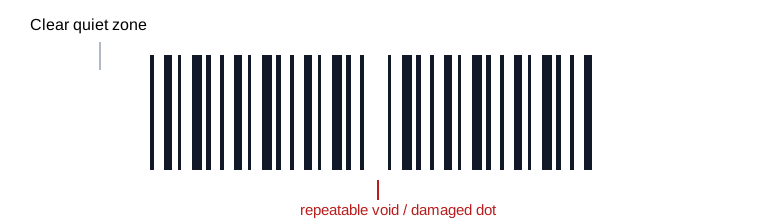
2. Check size and quiet zones
Reducing a barcode to make it fit can push narrow elements below what the printer can reproduce or the scanner can resolve. Cropping artwork can remove required quiet zones. Recreate the symbol at a compliant size instead of stretching a bitmap.
3. Look for repeatable printer defects
A white line appearing in the same position on every label often points to contamination or a failed printhead element. Heavy darkness can close narrow spaces; insufficient energy can leave weak bars. With thermal transfer, ribbon/media mismatch and ribbon wrinkle are additional suspects.
4. Confirm the scanner can read the symbology
A laser scanner normally reads linear symbols, not matrix codes such as Data Matrix or QR. Even capable imagers may have individual symbologies disabled. Check the scanner programming guide before assuming the barcode is bad.
5. Change one variable at a time
- Print a known-good symbol at normal size.
- Try the problem symbol on a second capable scanner.
- Try a fresh label away from seams or curves.
- Reduce print speed, then adjust darkness in small steps.
- Verify the final production sample with a verifier when compliance matters.